How to update your Voyager browse view
Published
•1 min read
A
I have the ability to put together high performance and scalable applications which are fit for purpose, functionality correct and meet user precise needs.
Let take a situation when you have already created a new table using Voyager and you find out some columns are missing, you want to add a new column, by default Voyager still keep the old column in the browse page, I don't know why it does that but I am sure the Voyager team will look into that.
Here are the steps to go about updating your Voyager view:
- On the menu by the left navigate to:
Tools -> Database
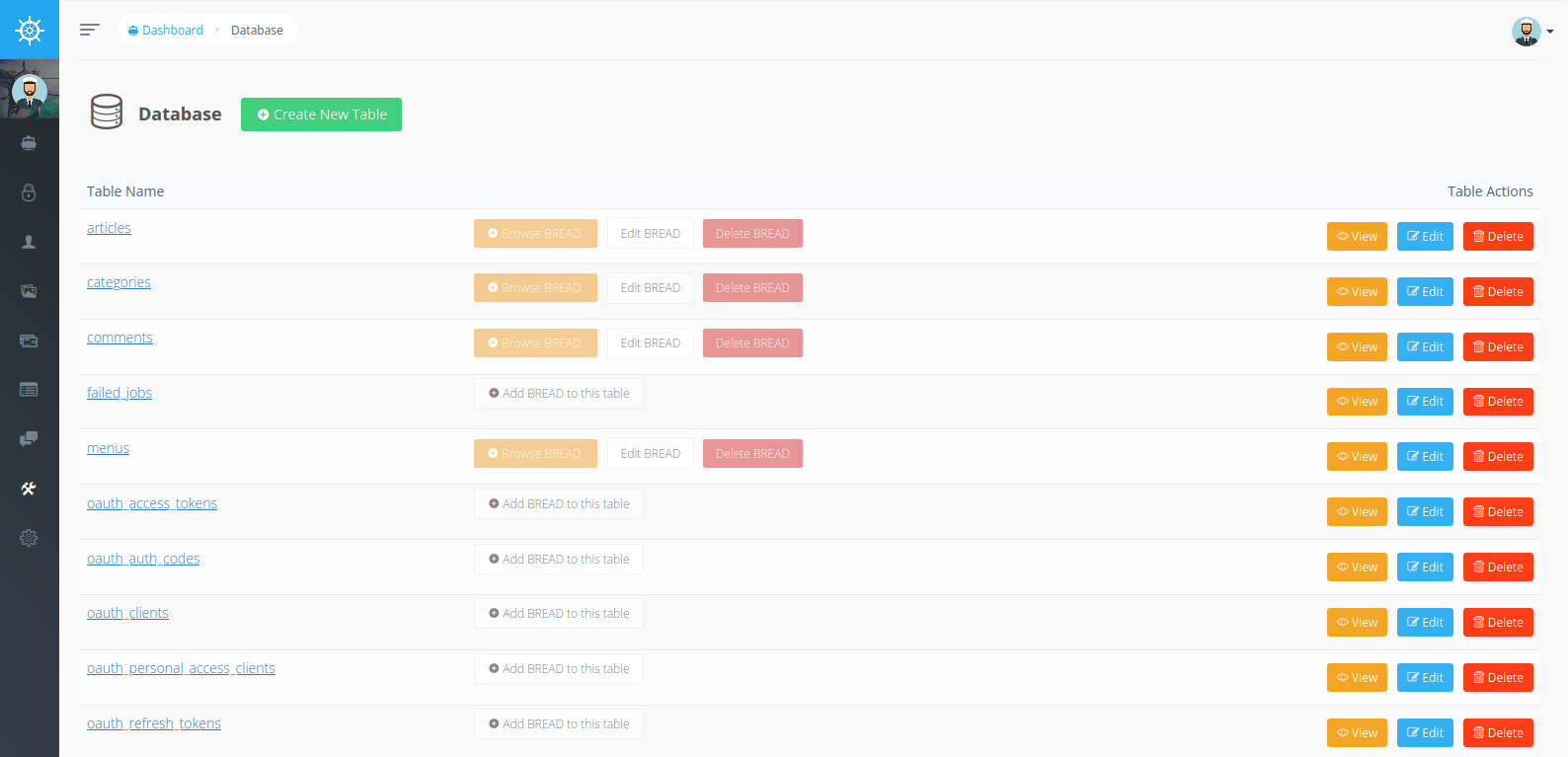
- Find the table name and click on the
Edit buttonunder thetable actions. This will redirect us to editing that particular table, in my own case is articles.
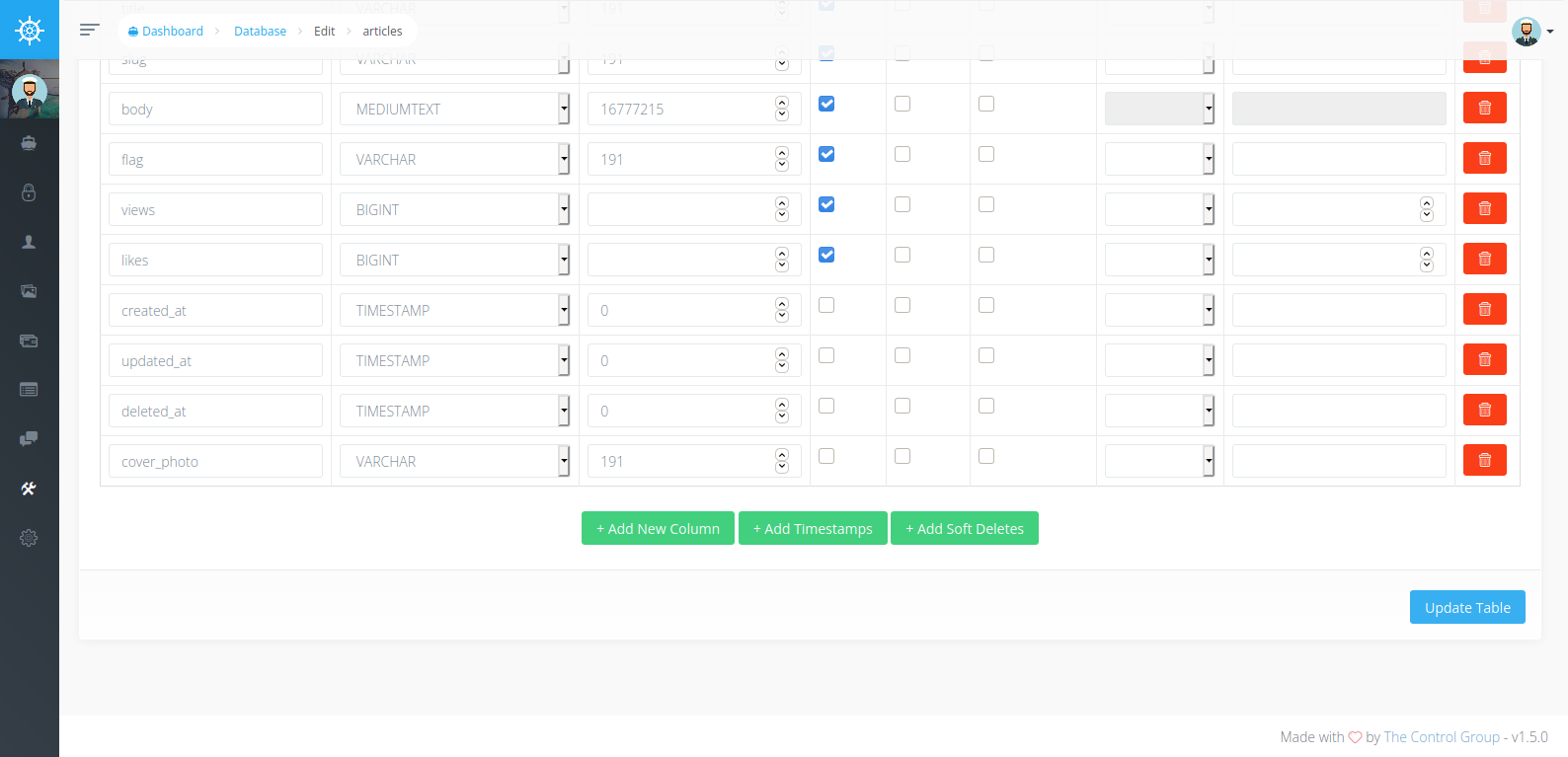
- Click on
+Add New Columnbutton, this will add new input fields to the DOM right above the buttons. Once we are done we click onUpdate Table.
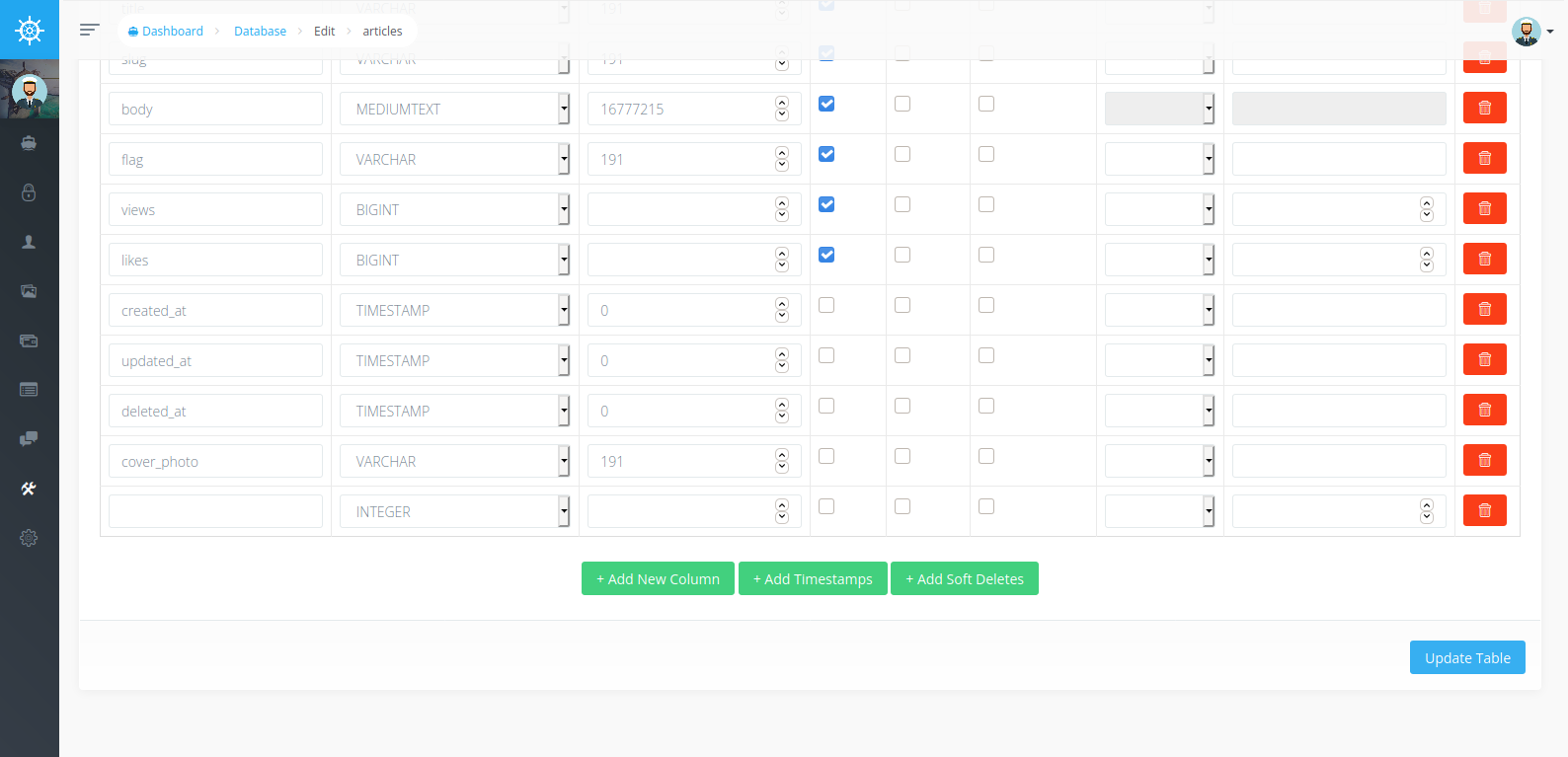
- Save then navigate to:
Tools -> BREAD view
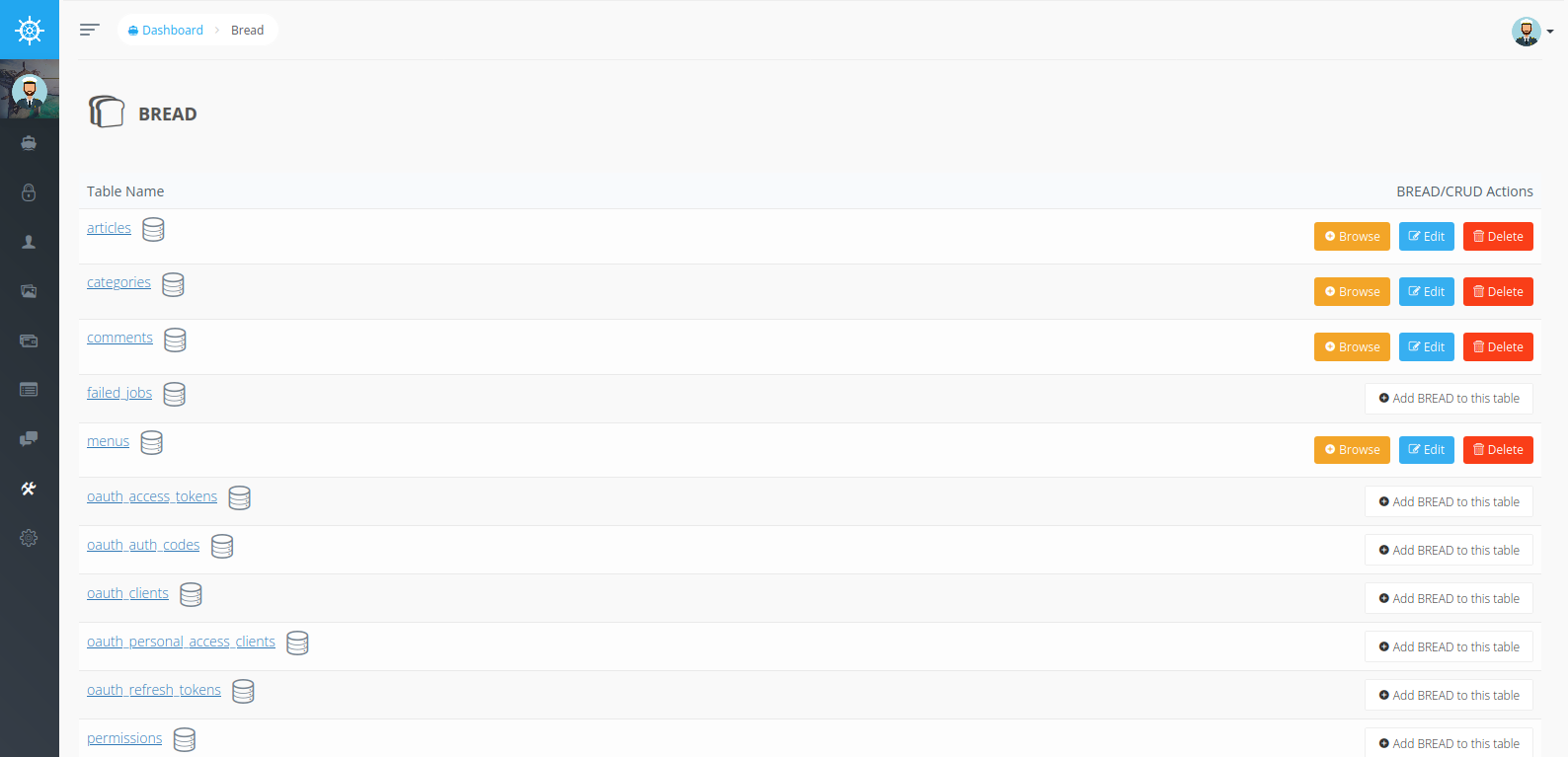
- Edit the table BREAD by clicking on the Edit button at
BREAD/CRUD Actions
- Click on Submit button. Then the magic happens.
Automatically the browse section for that table will updated.
Thanks for reading :love: